LG webOS compatibility guide

Eleph TV on LG webOS: Can You Install the APK on an LG TV?

Eleph TV is an Android APK, while most LG Smart TVs use webOS. That means the APK cannot be installed directly through the LG Content Store or opened from a USB drive. You can still watch through an Android TV box, Google TV streamer, Fire TV device, or supported phone casting. This guide separates the native limitation from the practical workarounds and records the current project-linked APK identity.

Why Eleph TV Cannot Be Installed Directly on LG webOS

The important distinction is the operating system, not the LG brand name. Eleph TV is packaged as an Android application. LG webOS televisions install apps through LG's own app platform, so an Android .apk file is not a compatible webOS package. Downloading the APK in the TV browser, copying it to USB, or changing the filename does not convert it into a webOS app. If an installer claims to be an Eleph TV webOS APK, LG APK, or premium-unlocked LG build, treat that claim as a warning rather than a solution.

A practical setup keeps the LG television as the display and runs Eleph TV on another device. An Android TV box or Google TV streamer is usually the closest match to the app's TV interface. Fire TV can also use an Android-based sideloading route. Casting from an Android phone may work when both the app and television expose compatible casting or screen-share functions, but it is less predictable than a dedicated HDMI device. The direct APK linked by this project was verified on July 29, 2026 as version 1.1.3, version code 10103, 44,585,157 bytes, package com.africa.elephtvplus, with a server last-modified date of July 23, 2026. Those facts describe the file; they do not make it a native webOS app or prove content licensing or malware-free status.

LG platform
webOS, not Android
Native APK
Not supported
Best workaround
External Android device
Verified file
1.1.3 / 44.6 MB

The verified APK direct link is useful only on a compatible Android-based phone, TV device, or emulator. It should not be downloaded to LG webOS as if it were an LG Content Store package.

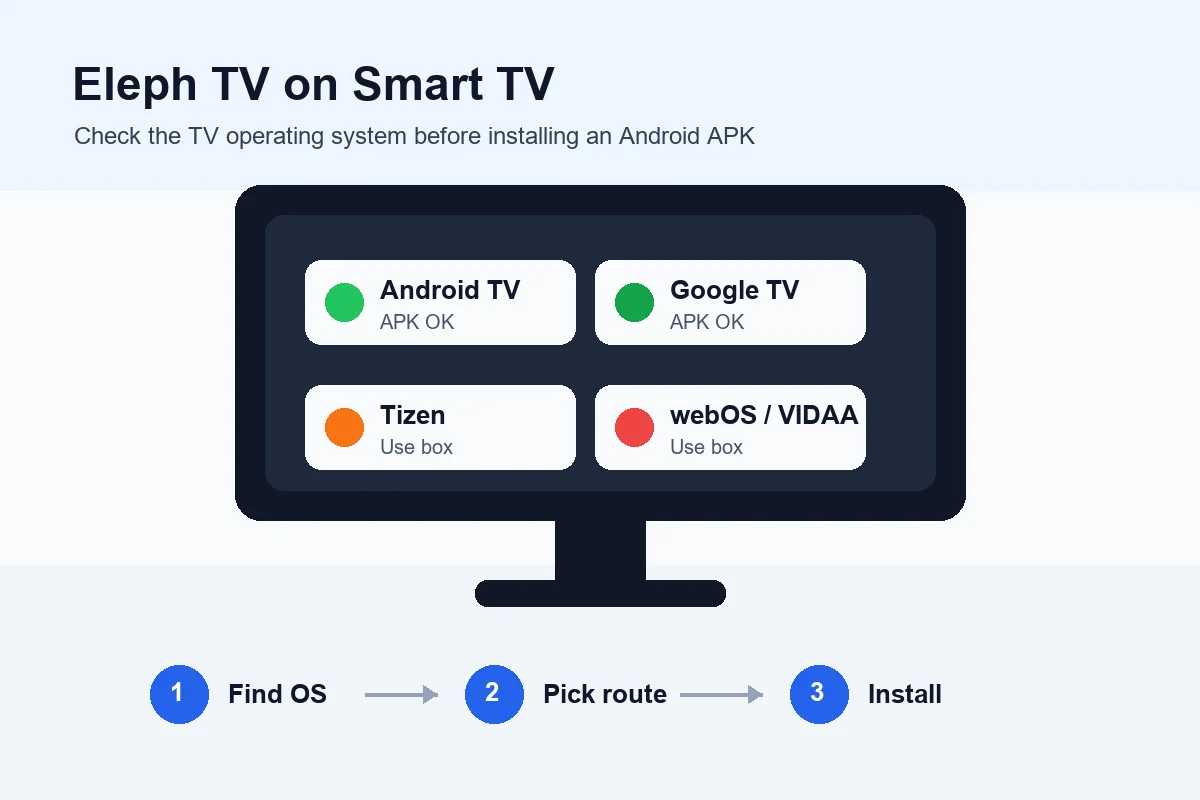
Eleph TV LG webOS compatibility diagram showing an external Android device workaround
LG webOS cannot install the Android APK directly. Run Eleph TV on an Android-based HDMI device or use supported casting instead.

Eleph TV Options for an LG Smart TV

Choose the route by what actually runs the Android app. The LG screen can display every option below, but webOS itself does not install the APK.

MethodWill it run Eleph TV?What to expect
Install APK in LG Content StoreNoThe store installs webOS apps, not Android APK packages.
Open APK from USB on LG TVNowebOS can read media files from USB but cannot execute an Android installer.
Android TV box or Google TV streamerYes, on the external deviceConnect by HDMI, install the APK on that device, and use the LG TV as the display.
Fire TV Stick or Fire TV deviceUsually, through sideloadingUse Downloader or the browser on Fire TV, then grant install permission only to that app.
Android phone casting or screen sharingSometimesSuccess depends on the Eleph TV player, phone, LG TV model, and network.
AirPlay from iPhoneNot a native APK routeAn iPhone cannot install the Android APK; only supported video or screen mirroring may be available.

Three Practical Ways to Use Eleph TV with LG webOS

A dedicated external player is more reliable than trying to force an Android package into webOS. Pick the method that matches your hardware and tolerance for setup.

Android TV box or Google TV streamer

This is the most direct TV-style route. Connect the device to HDMI, join Wi-Fi or Ethernet, allow installs for a trusted browser or file manager, and install the standard APK. The app runs on the external Android device while the LG television displays the picture. Keep the installer source and package identity consistent when updating.
Fire TV with Downloader

Fire TV uses an Android-derived platform and can often sideload the same APK. Install Downloader from the Amazon store, permit Downloader to install unknown apps, open the verified direct APK or the site's Downloader-code guide, and disable unnecessary install permissions afterward. Do not use a modified LG-labelled APK.

Android phone casting as a fallback

Install Eleph TV on a compatible Android phone, put the phone and LG TV on the same network, then test the app's cast control or LG screen sharing. Protected video, player design, Wi-Fi isolation, and model support can block casting. Use this as a convenience option, not a guaranteed replacement for an HDMI device.

PC or Mac with an Android emulator

A computer can run the APK inside an Android emulator and connect to the LG TV by HDMI. This uses more power and setup than a streaming stick, but it can help when you already watch from a laptop. Follow the dedicated PC guide and avoid emulator downloads from untrusted mirrors.

How to Set Up Eleph TV for an LG TV with an External Device

These steps install the app on an Android-based player, not on webOS. Menu names differ by device, but the security boundary is the same.

1

Confirm that the LG television runs webOS

Open Settings, General, About This TV, or System Information and check the platform. If the app store is LG Content Store or Apps, assume the television firmware is webOS and do not attempt to open an APK on the TV itself.

2

Choose an Android-based player

Use an Android TV box, Google TV device, Fire TV device, or another known Android-based HDMI player. Connect it to the LG TV, choose the correct HDMI input, and finish the player's initial network and account setup.

3

Allow installation for one trusted app

On the external device, permit unknown-app installation only for the browser, Downloader app, or file manager you are using. Do not enable broad security exceptions and do not disable Android protection tools simply because a download page tells you to.

4

Download and verify the current APK

The project-linked file checked on July 29, 2026 is version 1.1.3, code 10103, package com.africa.elephtvplus, and 44,585,157 bytes. The stable direct URL returns HTTP 200 with an APK-compatible binary. If Android shows another package, a downgrade warning, or an unexpected filename, stop and recheck the source.

5

Install, test navigation, and review access

Install the APK on the external player, launch it, and test the remote focus, video playback, audio, and one live or on-demand item. Registration, trial, VIP, and content availability are account or service questions; they are separate from LG webOS compatibility.

6

Update through the same verified route

When a new build appears, compare version code, package name, size, hash, and server date before installing over the existing app. Do not replace a working standard package with a cracked or premium-unlocked build to solve playback or subscription problems.

What Eleph TV Looks Like on the External Player

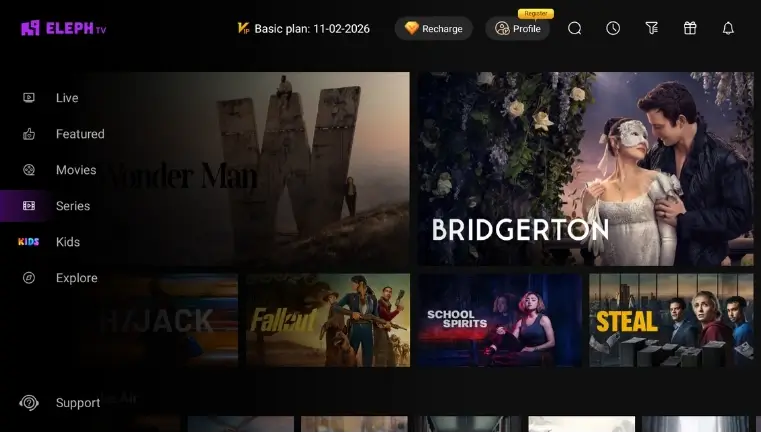
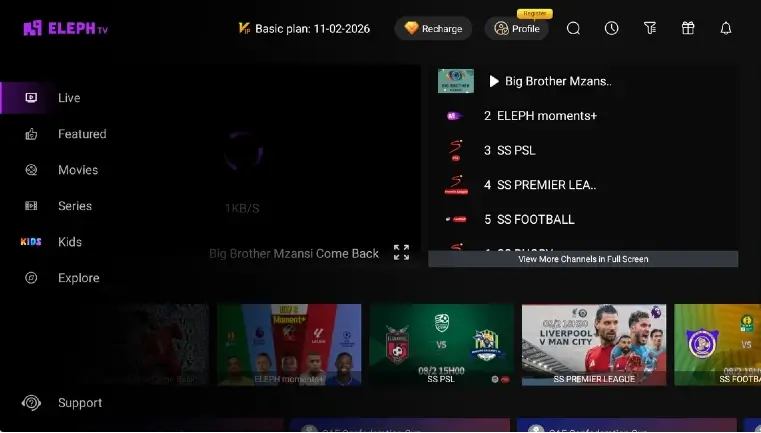
These real app screenshots show the interface that the external Android device sends to the LG television. They are not screenshots of a native LG webOS application.

Eleph TV home interface displayed by an external Android device on an LG TV
The home screen includes Live, Featured, Movies, Series, Kids, Explore, recharge, and profile controls. On an LG TV this interface comes from the connected Android-based player.
Eleph TV live channel player and channel list for LG TV external-device setup
The live view combines video, channel navigation, and sports tiles. A remote-friendly Android TV or Fire TV device is usually easier to control than phone mirroring.

LG webOS Troubleshooting: What Common Errors Really Mean

Most problems come from confusing the LG television with the device that actually runs Eleph TV. Diagnose the correct layer before downloading another file.

The APK will not open from USB

That is expected on webOS. Move the APK to an Android TV box, Google TV, Fire TV, Android phone, or emulator and install it there.

Eleph TV is missing from LG Content Store

The direct Android package is not a native webOS store app. Search results promising a special LG APK should not be treated as an official store listing.

The HDMI device has no picture

Select the correct HDMI input, reseat the cable, try another port, and confirm the external player has power. This is an HDMI setup issue, not an APK compatibility issue.

Casting cannot find the LG TV

Put both devices on the same Wi-Fi network, disable guest-network isolation, enable LG screen sharing when available, and confirm the phone and TV support the same casting method.

Android reports an update conflict

Compare package com.africa.elephtvplus and version code 10103. A different signature or package may require removing another build, which can erase app data. Verify before uninstalling.

The app opens but video does not play

Test network speed, another stream, lower quality, Ethernet, and device time settings. Playback failure does not mean LG webOS needs a different APK because webOS is only displaying the external device.

Download Eleph TV 1.1.3 for the External Android Device

Use this verified direct APK only on a compatible Android-based phone, streamer, TV box, Fire TV device, or emulator. Do not download it to LG webOS expecting a native installation.

Verified July 29, 2026: version 1.1.3, code 10103, 44.6 MB, package com.africa.elephtvplus. The official product page does not publish full release notes, so the file is described as the current verified project-linked build rather than guaranteed safe or licensed.

Download the verified Eleph TV 1.1.3 APK

SHA-256: 1e3c68b3f0b50aad77ac74936357f6756e70ad5f74d2055e38db50537c130af2

HTTP 200 direct APK44.6 MB verified sizeExternal Android device only

FAQ About Eleph TV on LG webOS

Can I install Eleph TV APK directly on an LG webOS TV?

No. LG webOS does not execute Android APK packages. Install Eleph TV on an Android TV box, Google TV device, Fire TV device, Android phone, or emulator, then display or cast it to the LG television.

Is there an official Eleph TV app in LG Content Store?

The verified project-linked installer is an Android APK, not a native webOS package. Do not assume that a similarly named LG store listing or web download is the same product without matching the developer and platform.

Can I install the APK from a USB drive on my LG TV?

No. A USB drive can store the file, but webOS cannot launch the Android package installer. USB installation is useful only when the USB is opened by a compatible Android-based player.

What is the best way to watch Eleph TV on an LG TV?

A dedicated Android TV box, Google TV streamer, or Fire TV device connected by HDMI is usually the most stable option. Casting from an Android phone can work but depends on the player and network.

What is the current verified Eleph TV APK version?

The project-linked direct APK checked on July 29, 2026 reports version 1.1.3, version code 10103, package com.africa.elephtvplus, and size 44,585,157 bytes. Its server last-modified header is July 23, 2026.

Does a newer APK make LG webOS compatible?

No. An APK update can change the Android app, but it does not change LG webOS into Android. You still need an Android-based device or a supported casting route.

Is casting the same as installing Eleph TV on webOS?

No. With casting or screen sharing, the Android phone runs the app and sends video or the screen to the LG television. The app is not installed in webOS and may stop when the phone disconnects.