1
Identify the TV operating system
Open Settings, About, Device Preferences or System Information. Look for Android TV, Google TV, Fire OS, VIDAA, Tizen or webOS before downloading anything.
Smart TV installation guide
Before you type a Downloader code or move an APK file to a USB drive, check the operating system on your Smart TV. Eleph TV is an Android APK, so Android TV and Google TV models have a direct path, while Samsung Tizen, LG webOS and many Hisense VIDAA models need a streaming stick, TV box or casting alternative.
No. Eleph TV APK is built for Android, not for every Smart TV platform. If your TV has the Google Play Store and shows Android TV or Google TV in Settings, you can usually follow an APK installation path after enabling unknown-app installs. If your TV uses Samsung Tizen, LG webOS or Hisense VIDAA, the TV cannot run the APK by itself. In that case the practical route is to plug in an Android TV box, Google TV device, Fire TV Stick or another Android-based streaming device, then install Eleph TV on that device instead of on the television firmware.
Do not install files promoted as Smart TV EXE, Tizen APK, webOS APK, premium unlocked APK or mod APK. Those labels are usually wrong for this app and can be unsafe.
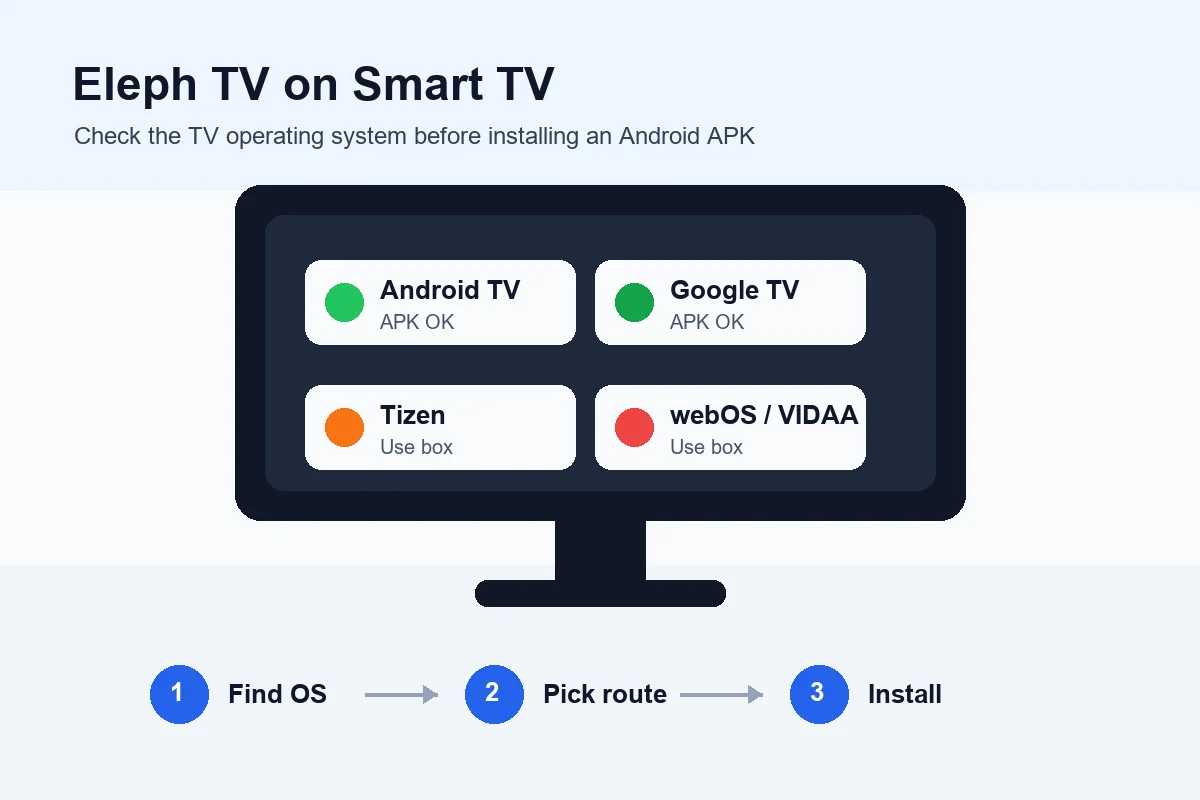
Use this table to decide which installation guide to follow. The exact menu names vary by year and region, so check Settings > About or System Information before downloading the APK.
| TV or device type | Can install Eleph TV APK directly? | Best path |
|---|---|---|
| Android TV | Yes, when unknown-app installs are allowed | Use Downloader, browser download or USB transfer, then open the APK installer. |
| Google TV | Yes, similar to Android TV | Install a file manager or Downloader, allow installs for that app, then install the APK. |
| Hisense Android TV or Google TV | Usually yes | Confirm the OS first, then follow the Android TV steps. |
| Hisense VIDAA | No direct Android APK support | Use an Android TV box, Google TV stick, Fire TV Stick or screen casting. |
| Samsung Smart TV with Tizen | No direct Android APK support | Use a separate Android streaming device connected by HDMI. |
| LG Smart TV with webOS | No direct Android APK support | Use a separate Android streaming device or cast from a phone when available. |
| Fire TV Stick | Yes, because it supports Android-based sideloading | Use Downloader and enable install permissions for Downloader. |
| Generic Android TV Box | Usually yes | Use the browser, Downloader or USB method, then test playback and remote controls. |
Follow these steps only after confirming that the target device is Android TV, Google TV, Fire TV or an Android TV box. For Samsung Tizen, LG webOS or VIDAA, first connect an Android streaming device by HDMI and perform the steps on that device.
Open Settings, About, Device Preferences or System Information. Look for Android TV, Google TV, Fire OS, VIDAA, Tizen or webOS before downloading anything.
For Android TV or Google TV, use the Downloader app, a browser download or USB transfer. For non-Android TVs, connect an Android TV box or streaming stick and install on that external device.
In security settings, allow unknown-app installs only for the browser, file manager or Downloader app you are using. Turn the permission off again after installation if your device allows it.
Use the normal Eleph TV APK source. Avoid mod, cracked, premium unlocked or brand-specific APK claims because a Samsung or LG TV cannot become Android by using a renamed file.
Open the APK file, confirm installation, then launch Eleph TV from Apps. Test navigation with the TV remote, a mouse or a Bluetooth controller if the remote focus feels slow.
After opening the app, verify whether registration, VIP trial, package access or a redeem code is needed. Keep installation questions separate from subscription questions.
Pick the method that matches your hardware. The safest setup is the one that respects the TV operating system instead of forcing an incompatible APK.
This is the cleanest method when your TV supports Android apps. Use Downloader or USB, install the APK, then keep the app updated from the same trusted path.
Use this for Samsung, LG or VIDAA TVs. The external device runs the Android app while the television only displays the HDMI signal.
Fire TV can sideload Android-based apps through Downloader. Enable installation permissions carefully and use the standard APK source.
If your TV cannot install the APK and you do not have an Android stick, install Eleph TV on Android mobile and use casting only when the app, TV and network support it.
A USB drive can help when the TV browser is awkward, but it works only on Android-based TV systems that can open APK files.
Avoid files claiming to be Tizen APK, webOS APK, Smart TV crack or premium unlocked build. They do not solve platform compatibility and raise security risk.
Most failures come from using the right APK on the wrong TV operating system. Check these points before redownloading the file.
The TV may be Tizen, webOS or VIDAA rather than Android. Use an Android streaming device instead of searching for another APK.
On Android TV, permission is granted per app. Allow it for Downloader, browser or file manager, not for every app on the device.
Try landscape mode, display scaling, resolution settings or a mouse pointer on the TV box. Some Android apps are easier with a pointer.
Use 5 GHz Wi-Fi or Ethernet when possible. Smart TV Wi-Fi can be weaker than a dedicated Android box placed near the router.
That is an account or plan issue, not an install failure. Use your own account and read the current trial or package status inside the app.
Uninstall only when necessary, reinstall the standard APK, then log in again. Avoid mixing APKs from multiple unofficial sources.
If your target device is Android TV, Google TV, Fire TV or an Android TV box, use the standard APK route below. If your TV is Samsung Tizen, LG webOS or Hisense VIDAA, install the APK on an external Android device instead.
Confirm the operating system first and avoid mod or premium unlocked APK files.
Download Eleph TV APKNot directly if the Samsung TV runs Tizen. Eleph TV is an Android APK, so the practical solution is to use an Android TV box, Google TV stick or Fire TV Stick through HDMI.
LG webOS TVs do not install Android APK files directly. Use an Android-based streaming device or cast from an Android phone when the app and TV support casting.
It depends on the Hisense model. Hisense Android TV or Google TV models can usually follow the APK route, while VIDAA models need an external Android streaming device.
For Eleph TV, the real file is an Android APK. A file promoted as a Samsung, LG, Tizen or webOS APK should be treated with caution because those systems do not run Android APKs.
Use an Android TV box, Google TV device or Fire TV Stick. It keeps the TV firmware unchanged while giving you an Android environment for Eleph TV.
No. Mod, cracked and premium unlocked APK files can be unsafe and do not fix platform compatibility. Use the standard APK on a compatible Android-based device.