Quick answer
Use Recharge inside the installed app
Open Eleph TV, choose Recharge or Subscription Plans, review the plan shown in your account, and follow its payment instructions. The first-party site describes scanning an on-screen code with a phone and then choosing a payment method. If you bought a code, redeem it from the app's Profile or account area. Labels and available methods can vary by build, so use the current app screen as the source of truth.
Checked November 4, 2026. The instructions below describe the first-party flow, not a guaranteed price, payment provider, or promotion. Confirm the amount and terms on the screen before approving a transaction.
Choose the right Eleph TV payment route
People asking how to pay for Eleph TV in South Africa usually need to solve one of two tasks: buy or renew access in the installed app, or redeem an activation code they already received. Start by identifying which task matches your account. A code does not mean that a second payment is due, and downloading the APK is separate from paying for a subscription.
The first-party ElephTV homepage describes buying a plan inside the app and also points users toward a reseller program for code-based purchases. Reseller availability and terms can change. If you choose that route, begin from a link on the first-party site and confirm the seller and payment destination before sharing any details.
Use the same Eleph TV account and supported device you intend to watch on. If you have not created an account yet, complete registration and verify the account first; payment made under a different profile can make later support harder. The registration guide explains the separate sign-up and verification steps.
- Pay in the app: Choose this when your installed app shows Recharge or Subscription Plans and you want to select a plan there.
- Redeem a code: Choose this when you already have a valid activation code from a source you checked.
- Pause if the route is unclear: Do not pay a person who contacted you unexpectedly or use an APK that claims to unlock VIP for free.
How to pay for Eleph TV in South Africa from the app
For most users, the in-app route is the clearest way to see the plan currently available to their account. The first-party instructions describe a Recharge button, a Subscription Plans view, plan selection on a phone, and payment completion. Button names may move after an update, but the basic check is the same: the app should show the plan and amount before you approve payment.
Follow the steps in order and keep the app open until the payment provider confirms the result. If a screen looks different, stop and compare it with the help page opened from the first-party ElephTV site. Do not rely on old screenshots, copied coupon codes, or price lists posted on unrelated pages.
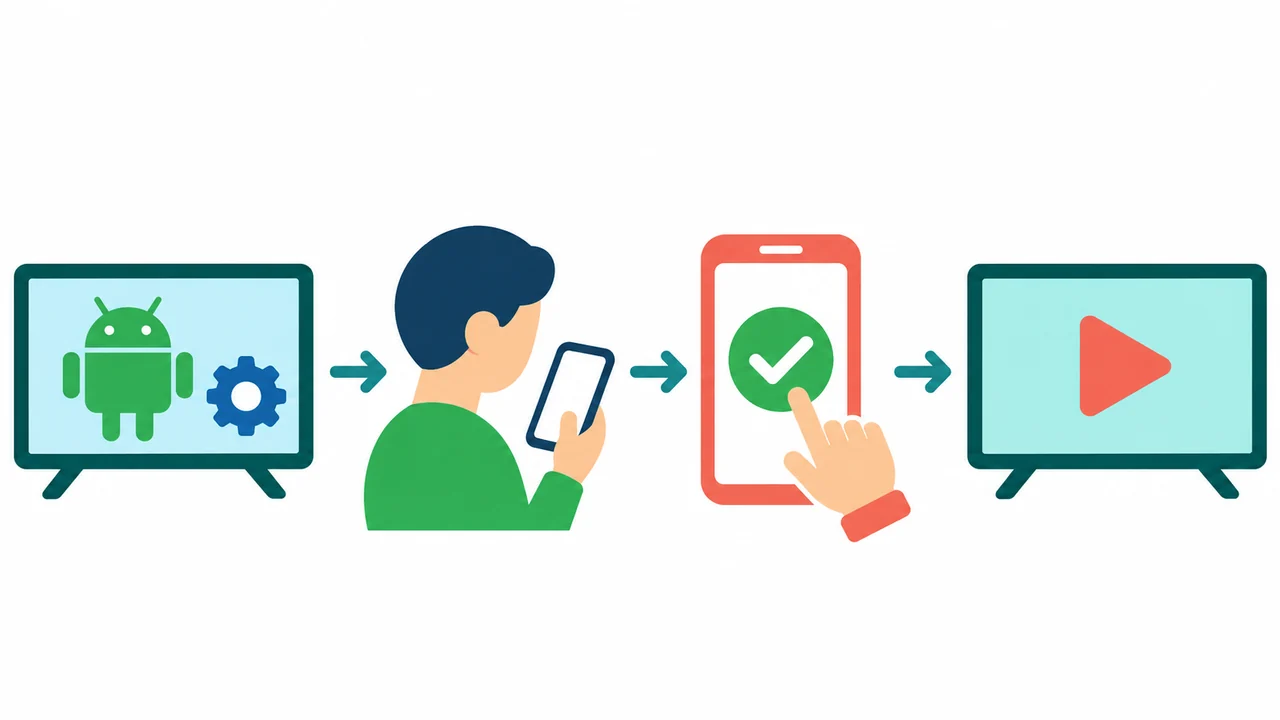
- Open the installed app.Sign in to the account that should receive the subscription. Check the profile name or account identifier before continuing.
- Open Recharge or Subscription Plans.If neither option appears, update only from a source you trust and check that the app is compatible with your device.
- Review the available plan.Read the displayed duration, device allowance, renewal terms, and total amount. Do not assume an older plan or trial offer still applies.
- Follow the displayed checkout steps.The first-party instructions describe scanning a code on the TV with a phone, selecting a plan on the phone, and choosing a payment method. Use only the destination presented by the app or its first-party checkout.
- Wait for confirmation, then recheck the account.Keep any receipt or order reference. Return to the profile or subscription area and confirm the access status before attempting another payment.
Complete a phone or QR payment carefully
A QR checkout can help when the app is open on a television. Keep the TV on its plan screen and scan only the code it displays with your own phone. A code sent in an unsolicited message does not prove that a seller or payment page is legitimate.
Before approving, match the phone page to the checkout you opened, compare the plan and total, and use the method offered on that current page. Options and prices can change by account, country, app build, and date. Never share a password, PIN, one-time code, or recovery detail in chat; stop if checkout asks you to install another file or grant remote access.
- Use your own phone: Do not scan a code sent through an unsolicited message or social post.
- Match the plan and amount: Check the duration, device terms, currency, and total before confirming.
- Keep a receipt: Save the confirmation privately in case the account status takes time to refresh.
- Avoid duplicate charges: If the page spins or closes, check transaction history and the app account before retrying.
Redeem an Eleph TV activation code
If your purchase included a code, use the code route instead of repeating checkout. The ElephTV first-party homepage describes a 16-digit activation code and a path from Profile through the account area to a redeem-code screen. A store or app build may shorten the label to Redeem Center, so look for the account's code redemption option rather than relying on one exact menu phrase.
Enter the code exactly as issued and confirm it once. Keep the message or order page where you received it until access appears. If the code is not accepted, check for transposed digits, hidden spaces, a code already used for another period, or a mismatch between the code and the signed-in account. Do not post the code publicly or send it to someone who offers to activate it for you.
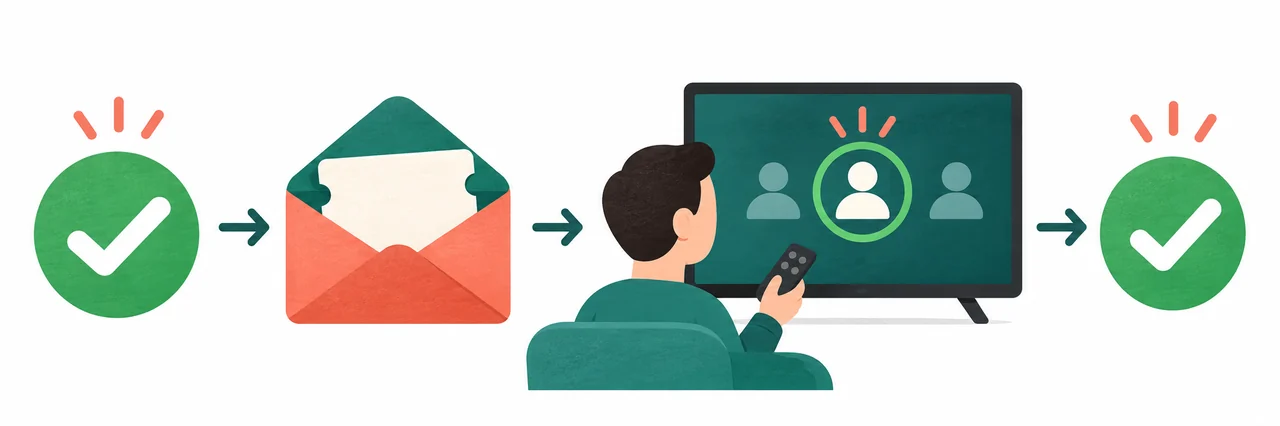
- Sign in to the intended account.Confirm that it is the profile where you want the access period to appear.
- Open Profile or Personal Center.Choose the visible redeem-code option. Labels can differ between releases.
- Enter the full code.Type the digits carefully, remove accidental spaces, and review the entry before submitting.
- Confirm once and wait for the result.Check the account status or access period. If it fails, record the exact message without sharing the code itself.
Fix an Eleph TV payment or activation delay
A successful payment and an updated subscription status may not appear at the exact same moment. Do not immediately pay again. First check the payment confirmation, then reopen the account area and verify that you are signed in to the same profile used during checkout. If you used a code, check the code status rather than starting another plan purchase.
Use the message shown by the app to narrow down the issue. Keep useful evidence, such as the time, plan name, order reference, device type, and exact error text. Redact card information, passwords, one-time codes, and the activation code before sharing any diagnostic details with support.
| What you see | What to check first | Safer next step |
|---|---|---|
| Payment page is still loading | Check the bank or payment app for a completed charge. | Wait for a result and avoid submitting a second payment while the first is unresolved. |
| Payment succeeded but access is unchanged | Confirm the signed-in account and reopen the profile or subscription area. | Keep the receipt and contact support through a route linked by the first-party site if it remains unchanged. |
| Code is rejected | Check each digit, whitespace, expiry or use terms shown by the issuer, and the account. | Do not share the full code in public or buy a replacement until the issuer has checked it. |
| No code message arrived | Check the address or phone used at checkout, spam folders, and the order page. | Use the seller's verified order-support route; do not follow an unrelated message asking for account access. |
| The menu label is different | Confirm the app release and look under Profile or account options. | Use the current first-party help page and do not install a modified APK to expose a payment feature. |
Frequently asked questions about Eleph TV payment
How do I pay for Eleph TV in South Africa?
Sign in to the intended account, open Recharge or Subscription Plans, review the current offer, and follow the displayed checkout. First-party instructions describe scanning an on-screen code with a phone.
Can I use an activation code instead?
Yes, if you have a valid code from a source you checked. Enter it once in the Profile or account area; first-party instructions describe a 16-digit code.
Why has my subscription not updated after payment?
Check the payment result and confirm the app is signed in to the same account. Keep the receipt and avoid paying again while the first transaction is unresolved.
How much does Eleph TV cost in South Africa?
The amount can change by plan, account, date, and checkout route. Review the current total and renewal terms in the app before approving.
Is downloading the APK the same as subscribing?
No. Downloading the app, using a trial, buying a plan, and redeeming a code are separate steps; installation alone does not activate paid access.
What should I do if a code fails?
Check the digits and account, then contact the issuer through its verified support route. Do not post the full code publicly.
First-party references
The workflow and account-code details were checked against these ElephTV pages. Their current instructions and the in-app checkout screen take precedence if labels or payment options change.
- ElephTV official homepage and account/payment instructions Describes in-app plan checkout, phone scanning, payment selection, and activation-code redemption.
- ElephTV package purchase instructions First-party page describing the Recharge entry point; promotional amounts are not repeated here.
- ElephTV reseller program Use the first-party route to check whether code-based purchases are available in your region.