Weak or crowded Wi-Fi
A TV behind walls or far from the router may lose packets. Other downloads, cloud backups and game updates can consume the same wireless airtime.
Playback troubleshooting guide
When Eleph TV buffering interrupts a live channel or movie, change one variable at a time. This guide helps you separate a weak connection, busy home network, TV performance limit, app state and stream-side issue before you reinstall anything.
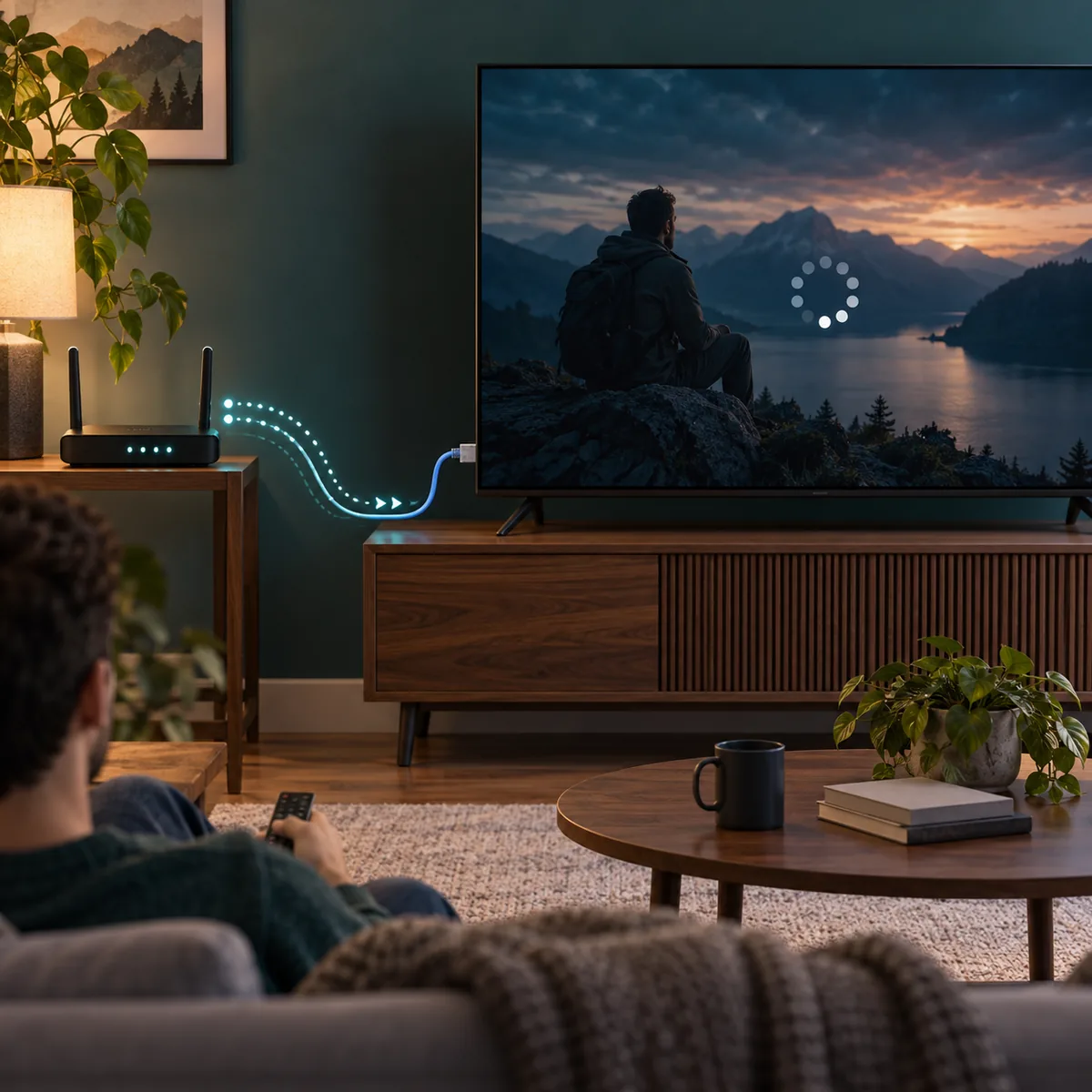
Eleph TV buffering is a symptom, not a diagnosis. A live stream needs a steady flow of data, and a short drop can make the player pause while it fills its buffer again. The same pause can also appear when the TV is short on memory, the app has stale state, the router is busy, or the selected stream is having a service-side problem.
Start with a repeatable test: use one familiar channel or movie, note whether the pause happens immediately or after several minutes, and check whether other devices on the same network still load video. Then make one change and run the same test. This keeps a network fix from being confused with a random app restart.
The goal is stable playback, not a promise that every stream will work on every connection. If only one channel buffers while other content is smooth, report or avoid that stream rather than changing device settings repeatedly. If every video pauses on the same TV, work through the local network and device checks below.
Buffering advice can identify likely causes, but it cannot verify a stream's licensing, account entitlement or server capacity. Keep those questions separate.
Use the pattern of the pause to choose the next test. These causes overlap, so the quickest answer comes from comparing the same content after one controlled change.
A TV behind walls or far from the router may lose packets. Other downloads, cloud backups and game updates can consume the same wireless airtime.
A router that has been running for weeks can become unstable. A restart can clear a temporary fault, while a different network helps confirm whether the route is local.
Too many open apps, low storage or an older TV box can leave less memory for playback. Closing unused apps is a safe first test.
High-resolution video needs a steadier data rate. If the player offers quality choices, test a lower setting before changing the installation.
If one channel pauses on several networks while other content works, the source may be busy. Local settings cannot fix a remote stream problem.
The real Eleph TV player screenshot below is a product reference, while the feature image explains the network path. Neither image is a guarantee of stream quality.
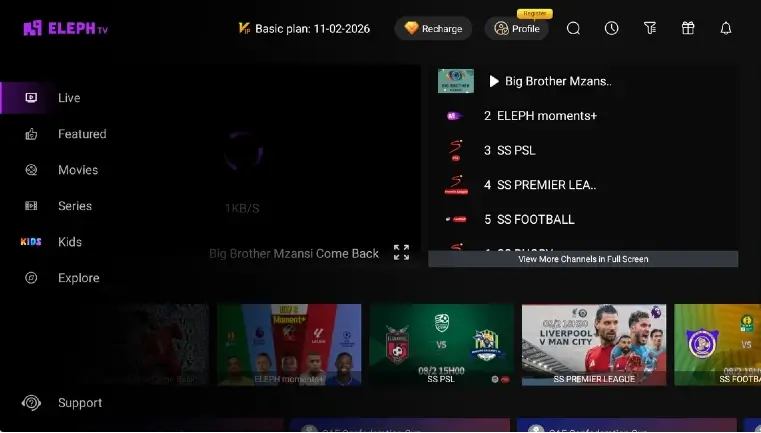
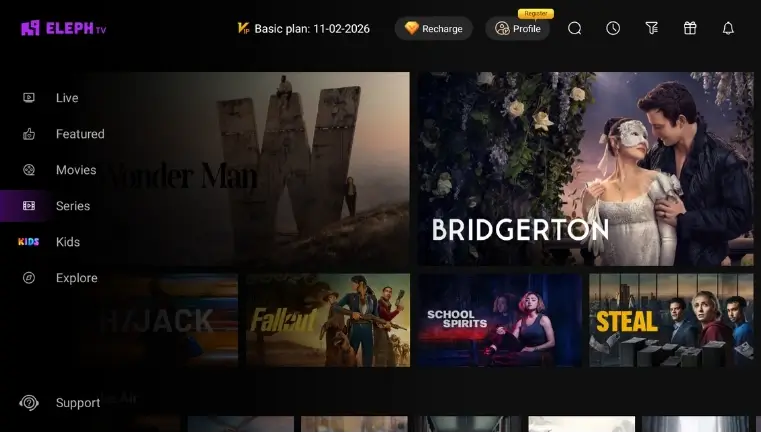
Record what happens on the same content before and after each test. This table keeps a device problem from being mistaken for a server problem.
| What you observe | Likely layer | Next safe test |
|---|---|---|
| Every channel pauses on one TV | Wi-Fi, router or TV resources | Try Ethernet or a phone hotspot, then close apps and restart. |
| Only one channel pauses | Specific stream or source | Test another channel and do not keep reinstalling the app. |
| Video starts, then pauses after minutes | Bandwidth changes or background traffic | Pause downloads and repeat at the same time of day. |
| Menus also freeze | TV memory, storage or app state | Close recent apps, check storage and restart the TV. |
| Phone is smooth, TV buffers | TV Wi-Fi position or device limit | Move the router, use Ethernet or test a compatible Android TV box. |
| All devices buffer | Internet service or remote source | Check another video service and contact the network provider if needed. |
Follow this order so each result tells you something useful. Stop when playback is stable; do not apply every change at once.
Open one channel or movie that normally plays for you. Note the start time, whether the pause is immediate, and whether audio stops with the picture.
Stop large downloads, cloud backups, console updates and other video sessions. Ask other users before disconnecting their devices, then run the same test again.
Close Eleph TV, restart the router, wait for its connection lights to settle, restart the TV, and open the app again. This clears temporary state without changing your installation.
Move the TV closer to the router, use a wired Ethernet connection when available, or briefly test a phone hotspot. A clear improvement points to the home network rather than the app menu.
Choose a lower quality or disable extra picture processing if the player offers those controls. Keep the setting long enough to judge the same channel instead of switching repeatedly.
Close unused apps, check free storage and install system updates offered by the TV. Avoid clearing data until you know the account or login details needed to sign in again.
Test two other streams and, if possible, the same stream on a second network. If one source fails everywhere, wait or contact the service instead of installing an unverified mod APK.
A buffering problem is frustrating, but some popular fixes create new account or security problems. Keep the troubleshooting boundary clear.
A modified package cannot repair Wi-Fi or a busy stream and adds code, update and account risk.
Do not paste public passwords or activation codes into unknown pages while trying to restore playback.
Clear cache only after recording the settings you need. Clearing storage may remove the saved account and preferences.
A pause that appears only during a busy evening window suggests congestion rather than a broken install.
Smooth playback does not prove that a channel is licensed, and a pause does not prove that an APK is unsafe.
Reinstall only when the app itself is damaged, menus fail after a verified update, or the device reports a clear package error. Use the standard download route and repeat the network test after installation.
A new APK is not a speed upgrade. Verify the source, package and permissions, keep Android protection active, and avoid mod or premium-unlocked files.
Review the standard TV install guideUse the guide for Android TV, Google TV, TV boxes and Firestick-style devices
This page uses the site's verified product screenshots and existing installation documentation. It is a troubleshooting framework, not a claim about server capacity or content rights.
Use the first-party product page to compare the service name and current support context.
Visit the product siteReview the project's standard installation and device-boundary notes before reinstalling.
Open the existing guideTest another Eleph TV channel and then the same channel on another network. One failing source may be congested, while every channel failing on one TV points to local Wi-Fi, device resources or app state.
Usually not when the cause is Wi-Fi, bandwidth or a busy stream. Reinstall only after you see a package or app-state error, and repeat the same network test after using the standard source.
No. A modified APK does not add bandwidth and can create security, update and account problems. Keep the standard package and troubleshoot the connection, device and stream layers first.
Ethernet removes wireless interference, but it cannot fix an overloaded internet connection or a remote stream outage. If wired playback improves, the Wi-Fi path was likely part of the problem.
An evening-only pattern can indicate shared home traffic, neighborhood congestion or a busier remote service. Pause downloads, compare another video service and repeat the test at a quieter time.
Close unused apps, check storage, restart the TV and reopen Eleph TV. If the device remains slow, use a supported Android TV box or update the TV system instead of repeatedly clearing app data.
A VPN can add another network hop and is not a default fix. First establish whether the direct connection, a second network or Ethernet changes the same repeatable stream.
No. Performance only describes delivery. Check the APK source, permissions, account terms and local content rights separately from the buffering diagnosis.