It closes before the home screen
A close after tapping can involve app state, installation, device resources, or compatibility. Check restart and storage first.
Android TV app troubleshooting
If Eleph TV closes at launch, hangs on its splash screen, or never reaches the home page, first identify exactly where it stops. This guide separates a startup failure from playback buffering, login trouble, and an APK that will not install, then gives you a cautious order of checks for Android TV and Google TV.
When Eleph TV keeps crashing, do not begin by downloading another APK. A sudden close can come from temporary app state, low device storage, an Android TV system issue, a damaged installation, or a mismatch between the package and the device. The symptom alone does not identify which cause is responsible.
Run one controlled check at a time. Record whether the app closes immediately, freezes at its logo, reaches the home page, or only fails after you open a particular menu. Then repeat the same launch after each safe change. This makes it easier to tell whether the app itself opens and whether a later account or playback issue needs a different guide.
These are general Android checks, not proof of an Eleph TV outage or confirmed app defect. If the failure continues, record the device and error, then ask the provider or device maker. Avoid modified packages.
A launch crash is not evidence that a stream is buffering, that an account is blocked, or that a newer APK is available. Diagnose those situations separately.
Start with the point of failure, not a guessed cause. These clues help you choose a low-risk next check without treating a playback or account issue as a startup crash.
A close after tapping can involve app state, installation, device resources, or compatibility. Check restart and storage first.
Note whether the logo eventually clears and whether Android still responds; a delay is different from a device-wide freeze.
The app launched. Repeat the affected section once and record its name; this is narrower than an app-wide launch failure.
Android TV needs space for app data and system work. Remove only files you recognize and no longer need.
A TV brand does not identify its operating system. This guide assumes Android TV or Google TV; Tizen, webOS, and Roku need another path.
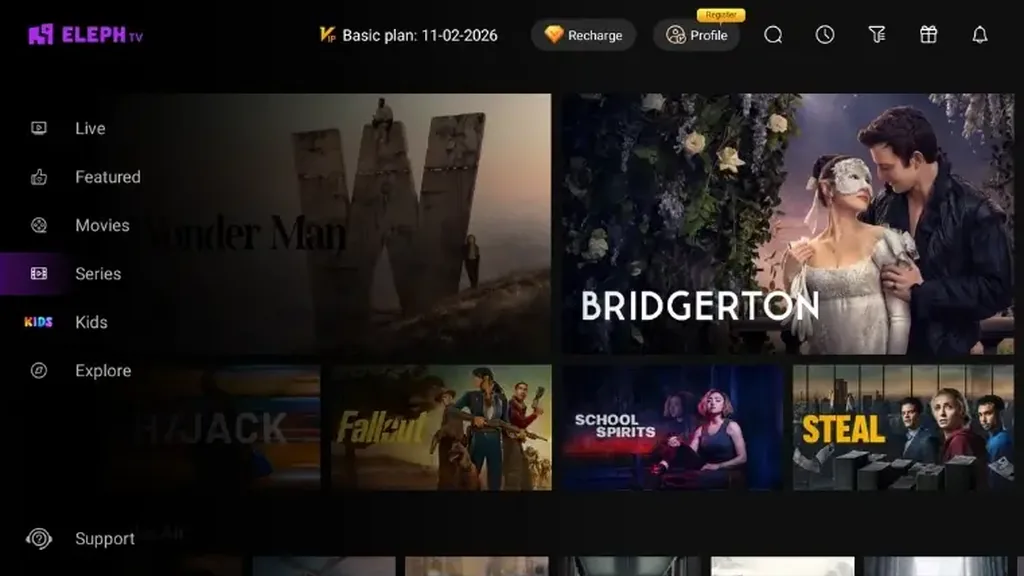
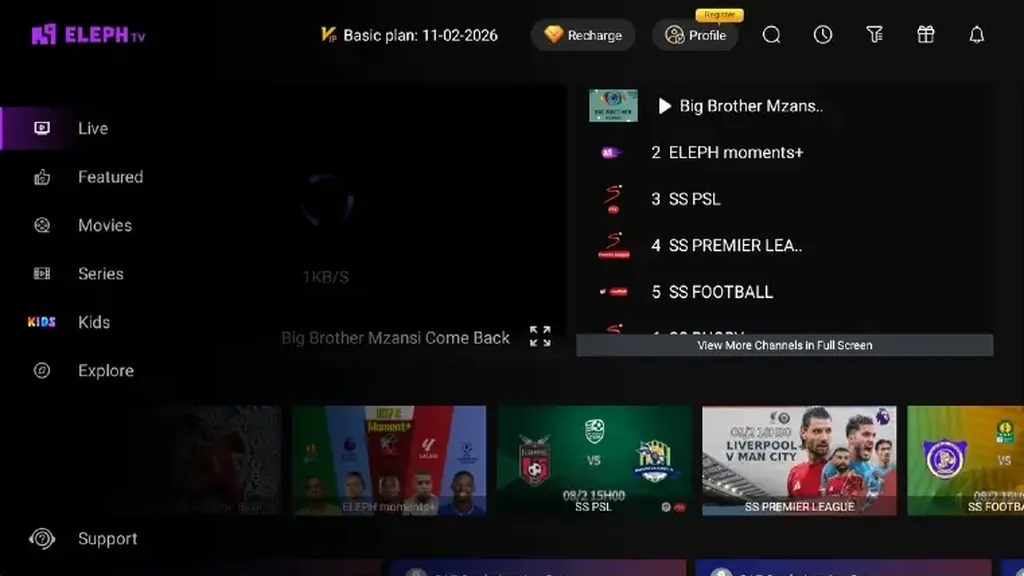
These real app screenshots from the site's existing product media show later states in the app journey. They are context examples, not evidence that a current crash or specific version has been reproduced.
Use the same device and the same launch path for each check. If one test changes the result, stop and record it before moving on.
| What happens | What it helps separate | Next low-risk check |
|---|---|---|
| App closes as soon as it opens | Temporary app state or installation issue | Force stop, reopen, then restart the device. |
| Logo remains on screen | Startup delay versus a frozen app | Wait briefly, note the elapsed time, and check whether Android responds. |
| Home page works but one menu closes | One section or request versus whole-app launch | Repeat that menu once and note its name and any visible error. |
| Other apps also close or freeze | TV storage or operating-system stability | Check free storage and device updates; follow the TV maker's support steps. |
| Only video pauses after opening | Playback or network issue rather than launch | Use the separate Eleph TV buffering guide and compare another stream. |
| The APK will not install | Package, permissions, or device compatibility | Use the Android TV installation guide; do not treat install errors as crashes. |
Work from reversible checks toward changes that affect saved data. Stop once the app opens reliably, and do not apply several fixes at the same time.
Note whether Eleph TV closes before the logo, stays on the splash screen, reaches home, or fails after a menu opens. Record any message and whether other apps work; this separates launch from login, playback, and installation symptoms.
Close Eleph TV, then use Settings > Apps > Eleph TV > Force stop if available. Restart the TV or box through its normal menu, wait for startup to finish, and repeat the same launch. Menu names vary by manufacturer.
Use the device storage screen and remove only apps or files you recognize. If available, try Clear cache before Clear data. Data removal can reset settings or sign-in details, so use it only when you can recover access.
Check that it runs Android TV or Google TV and identify the app source. Samsung, LG, Roku, or VIDAA televisions do not become Android-compatible because a download page names the brand. Use a supported external Android device when needed.
If the app still closes, verify a standard source and save the account recovery details before reinstalling one clean copy. Avoid modified packages. Retest once and record the device model, Android version, stopping point, and error for the provider or device maker. Never share passwords or private codes.
Some fixes remove account state or introduce a different package. Keep the diagnostic focused on the launch symptom and protect access to your account.
A modified package is not a reliable crash fix and may change permissions, updates, or account behavior. Use a source you can verify.
Before clearing data or reinstalling, make sure you can sign in again. Never share a password, verification code, or redeem code in a public forum.
One device closing at launch does not establish a service-wide failure. Compare another Android device or ask the provider before making broad claims.
Reinstall only after restart, force stop, storage, and cache checks. Confirm Android compatibility and that you can recover the account first.
Do not replace the app with a random mirror or modified package. The official Google TV support center can help you find device-specific app and storage menus.
Open Google TV HelpUse it for device-specific settings and support navigation; menu names vary
This guide uses general Android TV troubleshooting concepts and separates them from claims about the app's current version or service status. The steps do not confirm that Eleph TV has a known defect.
Device support entry point for Google TV settings and installed apps.
Visit Google TV HelpThe project references this domain as product context; this page does not verify a current release or support response.
Visit the referenced product domainA close at launch can relate to app state, device storage, Android TV compatibility, or a damaged install. The symptom alone does not confirm the cause; restart the app and device, then check storage and cache one step at a time.
Note how long it stays there and whether Android still responds. Close the app, restart the device through its normal menu, and repeat the same launch. If only one menu later fails, report that step rather than calling it a full launch crash.
It can clear temporary app state, but it is not guaranteed to fix a crash. Try Clear cache before Clear data; data removal may erase settings or sign-in details.
Use those steps only after a normal restart, force stop, and storage check. Clearing data can reset account state, while reinstalling requires a source you can verify and a way to sign in again.
No. If the app reaches its home page and video pauses, troubleshoot playback and the network. If the app closes before reaching the home page, follow launch checks.
A modified APK is not a safe or reliable repair. It may change permissions, updates, or account behavior and does not identify why the standard app closed.
No. This guide is for compatible Android TV or Google TV devices. Roku TV, Samsung Tizen, LG webOS, and VIDAA use different systems; see the compatibility guide for supported workarounds.
Share the device model, Android TV version, where launch stops, the visible error, and which safe steps you tried. Do not post passwords, one-time codes, activation codes, or account tokens.